
Below are the condensed instructions for registering for dual enrollment courses. For a more detailed step-by-step guide with visuals, click here. If you have never registered before, you must review these steps before moving forward.
1. Visit your high school’s landing page with your high school class schedule in hand. This can be found by visiting the Early College webpage and scrolling down to the list of high school partners.
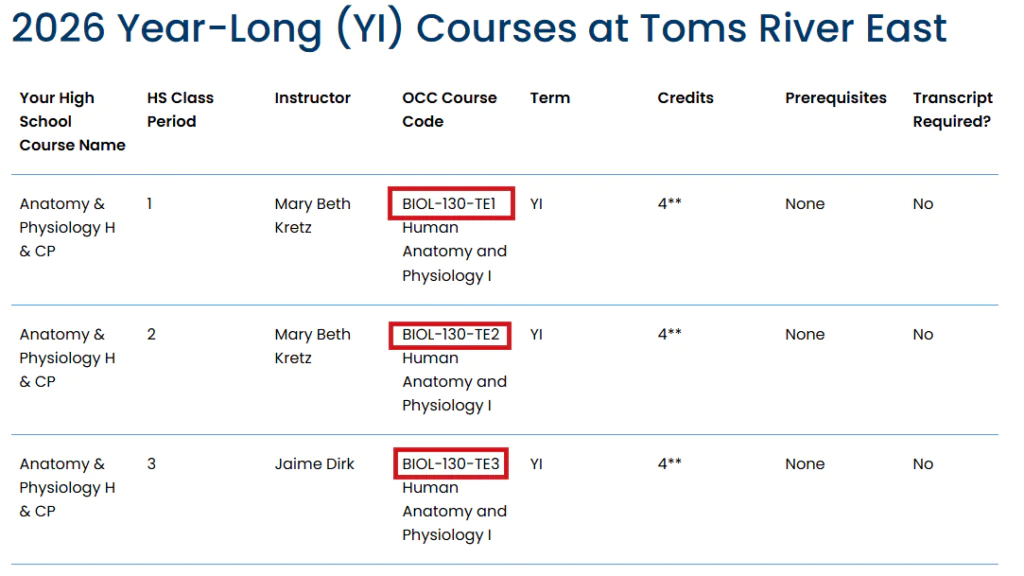
Scroll through the list of dual enrollment classes on your high school’s landing page. Find the classes you are enrolled in. Note the course code that corresponds to your class, class period, and instructor.
2. Click on the “Register Here” button at the top of the page which will take you to the Self-Service portal that includes a list of available courses offered by your high school.

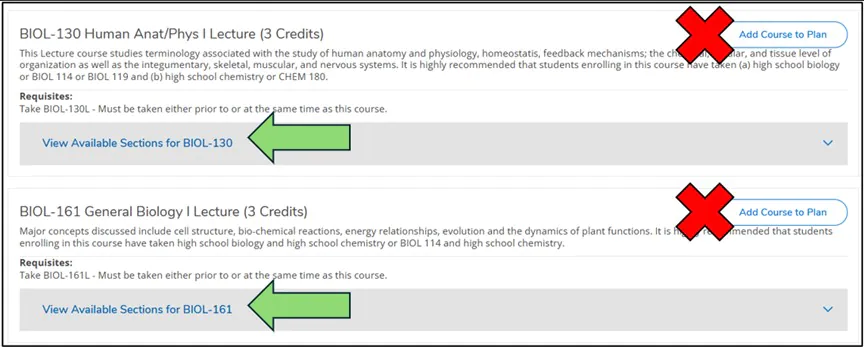
3. You are going to register for each course one at a time. For each course scroll down to it on the list.
DO NOT click on “Add Course to Plan.” This will not register you for the course.
DO NOT use the search bar or it will reset the location filter.
Find the first course and click on “View Available Sections” underneath it.
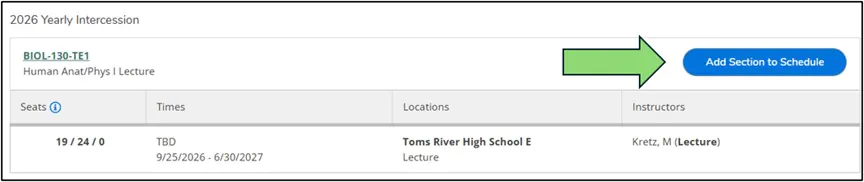
4. Find the section you are enrolled in and click “Add Section to Schedule.” Remember, the number in the course code correlates to the class period on the high school schedule.
A pop up will appear with details. Click “Add Section.” Repeat this step for each of your courses before moving on.
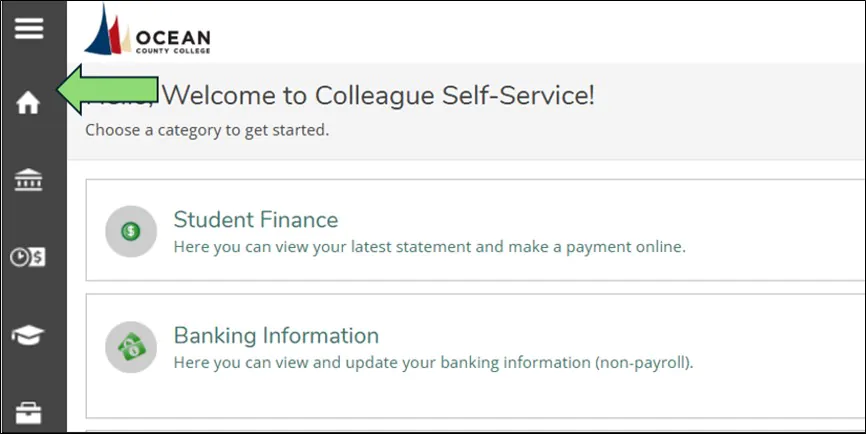
5. Once you have added all of your classes to your schedule, click the “Home” button at the top left.
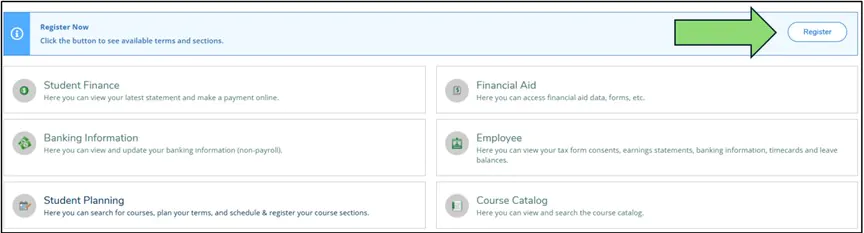
6. You will see a “Register Now” box at the top of the page. Click the “Register” button.
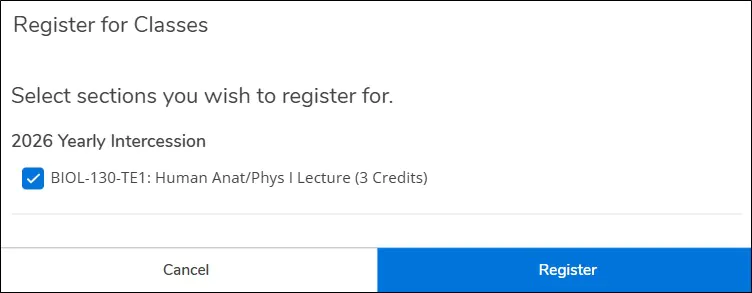
7. Click the checkmark next to each of your courses and click “Register.” Congratulations! You are now registered. To review your schedule, click on Student Planning> Go to Plan and Schedule> Timeline to scroll through each term and review.
If you receive an error message, please take a screenshot and send to earlycollege@ocean.edu.
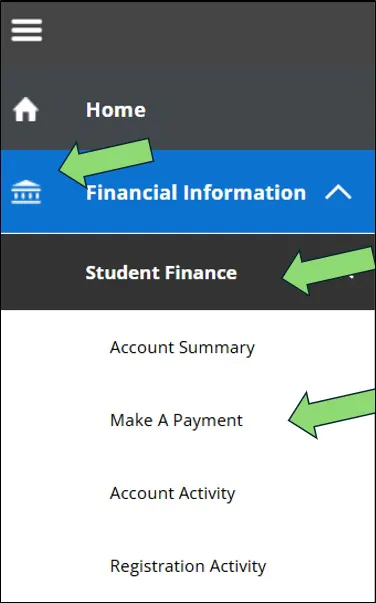
8. To pay for your courses, click on the bank symbol at the top left of the page to view “Financial Information”.
Click on Student Finance>Make a Payment>Proceed to Payment. This will prompt you to create an account with NelNet, our 3rd party payment processor. Payments are due upon registration.
Now that you have reviewed the guide, you are ready to register. Visit the Early College webpage and scroll down to the list of our high school partners.
Visit your high school’s landing page and Click “Register” to begin.
Questions? Contact us:
Email: earlycollege@ocean.edu
Phone: 732-255-0400 x534